
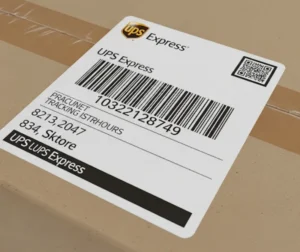
Printing a UPS shipping label saves time and helps prevent errors. To print a label, you need a UPS.com account and the correct shipping information. More people use UPS now because more packages are shipped every year.
In 2020, over 131 billion packages were shipped worldwide, and this number keeps going up.
Machines and new label printers make UPS shipping label printing faster and more exact.
With UPS, you can create a label for any shipping need. This makes shipping easy and helps you work better.
Key Takeaways
Making and printing UPS shipping labels helps you save time and avoid mistakes.
A UPS label shows who is sending and getting the package, a tracking number, a barcode, and other shipping info to help it get delivered right.
Pick the correct label type and size for your box so it fits well and can be scanned quickly.
Make a UPS.com account to handle your packages, put in the right details, pick a shipping option, and pay safely online.
Use a good printer and clear labels, or go to a UPS Store if you cannot print at home, so your packages ship without problems.
UPS Shipping Label Basics
What Is a UPS Shipping Label
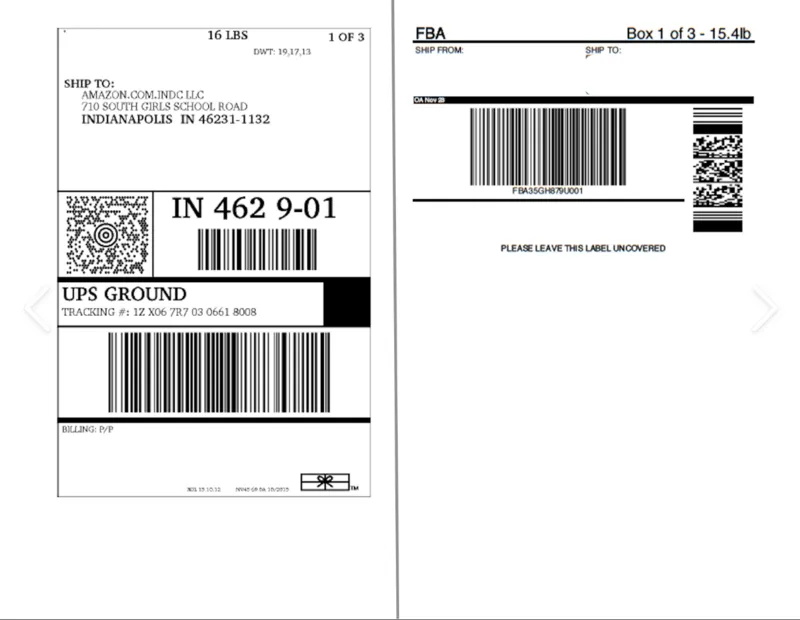
A UPS shipping label is a special document that helps UPS deliver packages quickly and safely. This label holds important details about the sender and the recipient. It also shows the type of shipping service, like UPS Ground or Next Day Air. People use a UPS shipping label to make sure their package gets to the right place. The label includes a tracking number and a barcode, which let UPS scan and follow the package as it moves.
Did you know? UPS handles over 24 million packages every day in more than 220 countries. The shipping label helps keep all these packages organized and moving in the right direction.
Most people create a UPS shipping label online. They print the label and stick it on the box. The label must be clear and easy to see. If the barcode is covered or hard to read, the package might get delayed. Using a UPS shipping label saves time and helps avoid mistakes.
Key Label Components
A UPS shipping label has several key parts. Each part plays a role in making sure the package arrives safely.
Sender’s Address: This shows where the package comes from. It is usually in the top left corner.
Recipient’s Address: This is the person or place getting the package. It sits in the middle of the label.
Tracking Number: This unique code starts with “1Z.” It helps UPS and the sender track the package at every step.
Barcode: This is a special code that UPS scans. It matches the tracking number and helps sort the package.
Service Type: The label shows if the shipping is standard, express, or another option.
Package Details: Weight, size, and sometimes what’s inside appear on the label.
Billing Information: The label may show if the shipping is prepaid or billed to someone else.
Accuracy matters. If any part of the UPS shipping label is wrong, the package could get lost or delayed. Always double-check the label before shipping.
Types and Sizes
Label Types
UPS has different label types for many shipping needs. Each type helps people send packages the best way for them. Here are some common types:
Domestic Labels: Use these for packages sent in the same country. They have all the details UPS needs for quick delivery.
International Labels: These are for packages going to other countries. They show customs info and help track the package.
Return Labels: Many businesses add these to their shipments. Customers use them to send things back easily. This makes returns simple.
Electronic Return Labels: UPS can email these to customers. The customer prints the label at home and puts it on the box.
Call Tag Labels: UPS brings these when picking up a return. This helps people who do not have a printer.
Tip: Return shipping labels make returns fast and easy. Many online stores use prepaid return labels to pay for postage and save money.
Label Sizes
Picking the right label size is important for easy scanning. UPS shipping label printing works best when the label fits the box and shows all the needed info. Here is a table with common label sizes and how they are used:
Label Type | Dimensions (inches) | Description & Use Cases |
|---|---|---|
Compact Parcel Labels | 4 × 4.25 | Good for small boxes like jewelry or gadgets. Used for some UPS services. |
Standard Labels | 4 × 6 | Fits most boxes and works with almost all UPS shipping services. |
Most Versatile Labels | 4 × 8 | Has extra space for barcodes, notes, or logos. Used by many people and stores. |
Largest Labels (Collates) | Letter, Legal, A4 | Used for big shipments or extra info. Can have ads or rules. |
The right label type and size help UPS scan and deliver packages on time. A label that is too small may hide the barcode. A label that is too big may not fit the box. People should match the label to the box and shipping type. This makes ups shipping label printing faster and better.
Create a Shipping Label
UPS.com Account
To start, every user needs a UPS.com account. This account lets them manage shipments, track packages, and save addresses for future use. Setting up an account is simple. Users visit the UPS website and click on the sign-up button. They fill in their name, email, and a password. After confirming their email, they can log in and begin the shipping process.
Tip: UPS also allows users to create a shipping label as a guest, but having an account saves time and keeps all shipments in one place.
Enter Shipment Details
Once logged in, users select the “Ship” option. The website asks for the destination country. UPS supports shipping to many places, including Canada, Mexico, Europe, Asia, and Latin America. Next, users enter the recipient’s full name, address, postal code, and phone number. The sender’s details go in as well. For repeat shipments, the address book feature helps save time.
After entering addresses, users fill in package details. They type in the weight and size of the box. These numbers help UPS calculate the shipping cost. For international shipments, users describe the contents. This step is important for customs paperwork. UPS also lets users send tracking emails to the sender, recipient, or others.
Note: Double-check all details before moving on. A small mistake in the address or weight can delay the package.
Select Service and Pay
Now, users choose the shipping service. UPS offers many options, like Ground, Next Day Air, and Worldwide Express. Each service has different speeds and prices. Users pick the one that fits their needs. They can also select the ship date if they want UPS to pick up the package later.
A summary page shows the total cost, including taxes and any extra services like insurance. Users review everything, then pay with a credit card or another method. After payment, UPS generates the shipping label.
Service Type | Delivery Speed | Best For |
|---|---|---|
UPS Ground | 1-5 business days | Everyday shipments |
UPS Next Day Air | Next business day | Urgent deliveries |
UPS Worldwide Exp. | 1-3 business days | International shipments |
Print UPS Shipping Labels
After payment, users see the option to print ups shipping labels right away. They can also save the label as a PDF to print later. The label stays valid for 90 days, so there is no rush if a printer is not handy.
To print, users open the label file and check that the printer has the right label paper loaded. UPS recommends using a 4×6 label for most shipments. For high-volume shipping, thermal printers work best. For smaller needs, inkjet or laser printers do the job.
Here’s a quick checklist for ups shipping label printing:
Open the label file (PDF or PNG).
Set the printer to match the label size.
Print a test page to check alignment.
Print the label on the correct paper.
Attach the label to the package, making sure the barcode is clear.
Pro Tip: Save a digital copy of the label. If the label gets damaged or lost, users can reprint it from their UPS account.
UPS makes it easy to create a shipping label, print ups shipping labels, and manage shipments. With the right details and a few clicks, anyone can send packages with confidence.
UPS Shipping Label Printing Options
Home and Office Printing
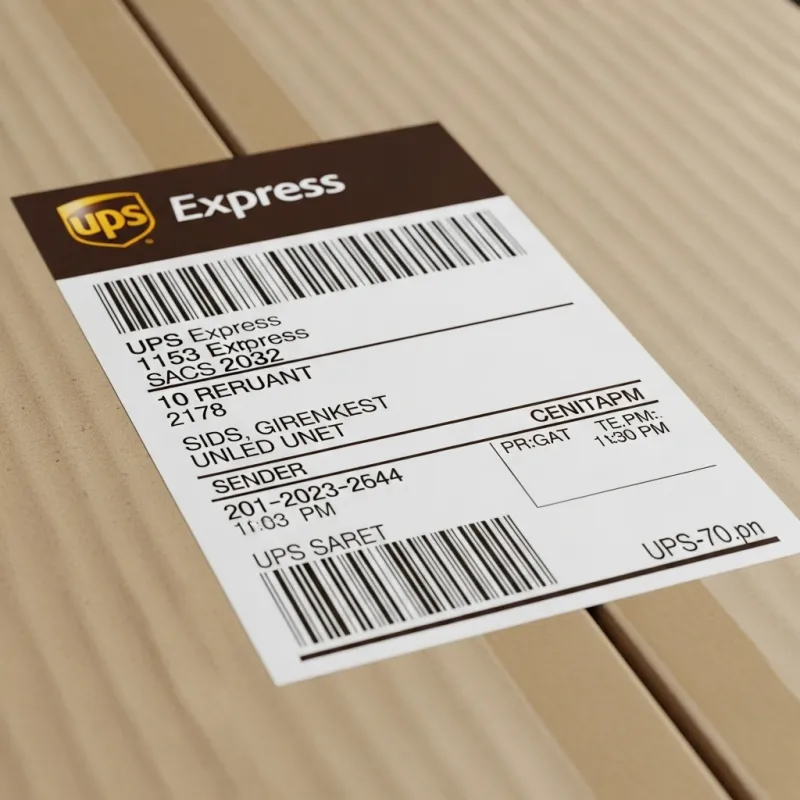
Lots of people print UPS labels at home or work. This saves both time and money. You can use inkjet, laser, or thermal printers. Thermal printers are fast and last a long time. They do not need ink or toner. This makes them great for lots of packages. Inkjet and laser printers are good for fewer labels. Most people use normal printer paper for UPS labels. Experts like Pitney Bowes say home printers help with shipping. Good printers, especially thermal ones, help avoid mistakes. They keep shipping easy and smooth.
Tip: Shipping software like Shippo and Easyship can print many labels at once. They also work with online stores. These tools help you print UPS labels and ship from home or work.
No Printer Solutions
Some people do not have a printer. UPS has ways to help. You can go to a UPS Store or Customer Center. The staff can print your label for a small fee. Some shipping software lets you email your label to UPS for printing. For returns, UPS can bring a label when they pick up your box. These choices help if you cannot print at home.
Print Quality Tips
Labels must be clear so they scan fast. Here are some tips:
Use the right label format every time.
Pick good printers and keep them working well.
Check each label for smears or faded words.
Teach everyone how to put labels on boxes.
Keep labels dry so they do not get ruined.
Bad labels can slow down your package. Good checks and printers help your box move fast with UPS.
Following each step in the UPS shipping label process helps users avoid mistakes and keeps shipping smooth. Picking the right label type and size makes scanning easy and prevents delays. When users follow the process, they see big benefits:
Order processing moves faster with fewer errors.
Packages reach the right place, making customers happy.
Tracking works better, which boosts efficiency.
Fewer returns and claims save money.
UPS rules get followed, so shipments stay on track.
If problems come up, UPS offers helpful resources for troubleshooting.
FAQ
How long does a UPS shipping label stay valid?
A UPS shipping label usually stays valid for 90 days. If someone does not use it right away, they can print it later. UPS will not accept expired labels.
Can someone reprint a lost or damaged UPS label?
Yes! Anyone can log in to their UPS.com account and find the shipment. They just click “Reprint Label.” UPS lets users print the same label again without extra cost.
What should someone do if the label will not scan?
Try printing the label again with higher quality settings. Make sure the barcode is clear and not smudged. If the problem continues, visit a UPS Store for help.
Does UPS accept handwritten shipping labels?
No, UPS does not accept handwritten labels. Every label must be printed so the barcode can be scanned. This helps UPS track and deliver packages without mistakes.